How to set up your Wi-Fi NFC card
Give guests a faster way onto your Wi-Fi without spelling out the password.
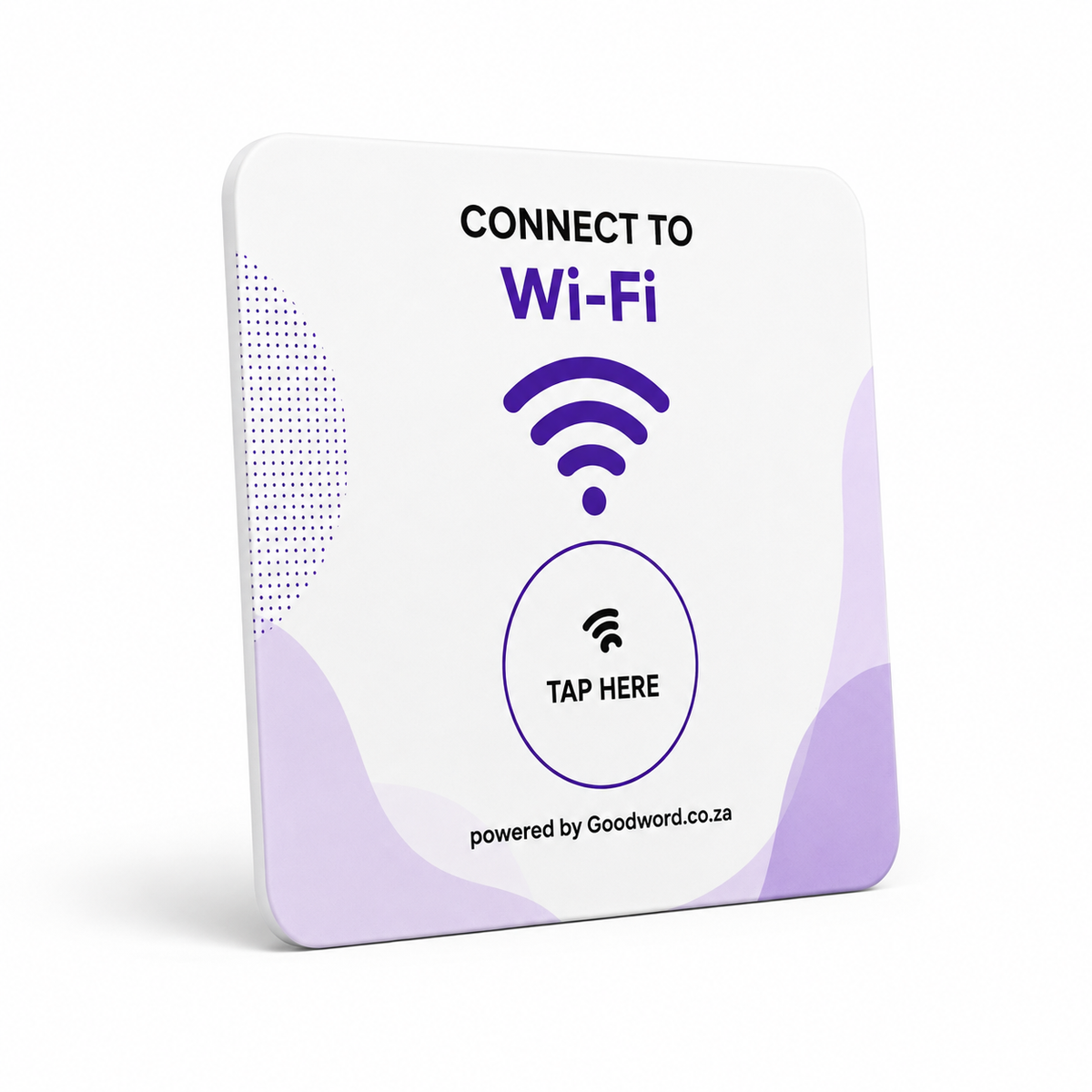
Set it once. Let guests tap to connect. If you supplied your Wi-Fi details when ordering, the card can arrive programmed. Otherwise, use the setup steps below. Test it with a phone that is not already connected to the network before putting it out for guests.
Quick start
- Test it. Turn Wi-Fi and NFC on, tap the card and confirm the correct network or join prompt appears.
- Place it. Use reception, tables, waiting areas, rooms, desks or any guest-facing place where Wi-Fi is requested.
- Tap + join. Guests tap the Tap Here area, then approve the Wi-Fi prompt or follow the phone's join flow.
Guest Wi-Fi ready · Rewritable NFC · No customer app — Card: acrylic · 117 x 128 mm · flat card · no stand included
How to tap + join the Wi-Fi
The card stores a Wi-Fi configuration. Compatible phones can read it by NFC; the exact notification and confirmation can vary by phone model, operating system and network type.
- Wake the phone. Unlock or wake the screen and make sure Wi-Fi is switched on.
- Tap the card. Hold the NFC area of the phone close to the Tap Here circle.
- Approve the join. Tap the Wi-Fi notification or join prompt if shown, then wait for the network to connect.
On iPhone
Hold the top of the iPhone near Tap Here. If a Wi-Fi join prompt appears, confirm it. NFC Wi-Fi behaviour can vary by iOS version and network configuration.
On Android
Make sure NFC is enabled, then hold the back of the phone near Tap Here. Accept the Wi-Fi prompt if shown and allow a moment for the connection.
Where Wi-Fi cards work best
Use the card where guests naturally ask for the password. A dedicated guest network is safer and easier to manage than sharing the same credentials used by staff, admin devices or business systems.
- Reception. Hotels, clinics, salons and offices can give visitors a quick way online.
- Tables. Restaurants and cafes can place cards where guests sit.
- Waiting areas. Useful where customers spend time and often ask for Wi-Fi.
- Rooms / desks. Guesthouses, co-working spaces and meeting rooms can share guest access.
Use a guest network when possible. Keep staff, point-of-sale and admin devices on a separate network. If you change the guest password, simply rewrite the NFC card with the new Wi-Fi details before putting it back out.
Program the card with your network
NFC Tools supports writing a Wi-Fi configuration record to compatible NFC tags.
Before you start
- NFC-enabled smartphone
- NFC Tools app
- Guest Wi-Fi name + password
Five steps
- Confirm the network. Use the exact Wi-Fi network name (SSID), security type and password. Network names and passwords are case-sensitive.
- Open NFC tools. Install NFC Tools on the phone you will use to program the card, then open the Write section.
- Add a Wi-Fi record. Tap Add a record and choose Wi-Fi network / WiFi configuration. Enter the SSID, security setting and password.
- Write to the card. Save the record, tap Write, then hold the phone over the Tap Here area until NFC Tools confirms the write.
- Test before displaying. Forget or disconnect from the network on a test phone, tap the card and confirm the correct Wi-Fi join flow appears.
Troubleshooting
Nothing happens
Wake the screen, remove a very thick case and move the phone slowly over Tap Here. Android: check NFC is enabled.
Wrong network
Rewrite the card with the exact guest SSID, security type and password. Check spelling and capital letters.
Password changed
Rewrite the card with the new password. The old Wi-Fi record will not update itself.
Sign-in page appears
Captive-portal Wi-Fi may still require the guest to accept terms or sign in after joining the network.
Before you lock the tag
Do not make the NFC tag read-only or permanently lock it until you have tested the Wi-Fi setup. A locked tag cannot be rewritten if the network name or password changes.
Good to know
- Reusable: if the tag remains writable, you can update the Wi-Fi credentials later.
- Compatibility: exact Wi-Fi join prompts vary by device, OS version, security type and network configuration.