How to set up your online store NFC card
Turn an in-person moment into a direct path to your online store.
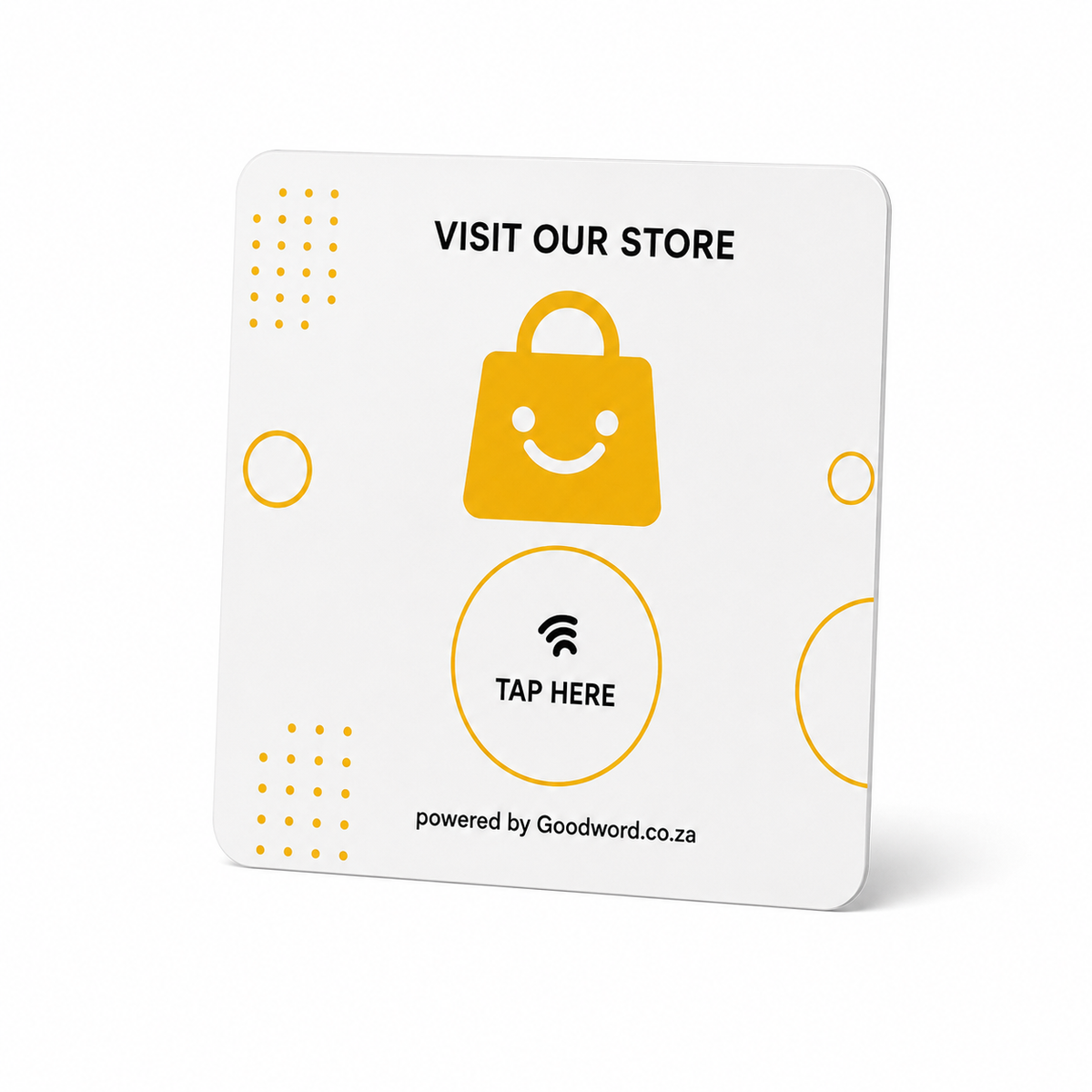
Your card arrives ready to use. We program the store link you provide before dispatch. When the card arrives, test it once, place it where customers already engage with your business, and you are ready to turn taps into online store visits.
Quick start
- Test it. Unlock your phone, tap the Tap Here area and confirm the correct online store page opens.
- Place it. Use the counter, collection desk, checkout, showroom or another natural customer touchpoint.
- Tap + shop. The customer taps, opens your store and can browse the page or product you selected.
Opens your store · Rewritable NFC · No battery — Card: acrylic · 117 x 128 mm · flat card · no stand included
How to tap the card
The phone reads the NFC link and opens the online store page you selected. The visitor can then browse, view products and continue shopping.
- Wake the phone. Unlock or wake the screen.
- Tap the card. Hold the NFC area of the phone close to Tap Here.
- Open + shop. Tap the notification, open the store page and browse or shop as normal.
On iPhone
iPhone XR / XS and later: hold the top of the phone near the card. iPhone 7 / 8 / X: open NFC Tag Reader first, then tap.
On Android
Make sure NFC is switched on. Hold the back of the phone near the card and tap the notification.
Placement that earns store visits
Put the card where someone has already shown interest in your products or has a natural reason to continue shopping online.
- Checkout. After an in-store purchase, while the brand is still top of mind.
- Collection. Great for click-and-collect or order handover points.
- Showroom. Place beside products that are also available online.
- Events. Use at markets, pop-ups, activations and exhibitions.
Send people to the right store page. Use a clean, mobile-friendly HTTPS link. Your homepage is flexible, but a product or collection page can remove extra steps when you are promoting something specific.
Link the card to your store
Use these steps if you want to link or re-link the card to a different store, product or collection page.
Before you start
- NFC-enabled smartphone
- NFC Tools app
- Your store or product URL
Five steps
- Choose the destination. Open the exact store, product or collection page you want the card to open.
- Copy the full store link. Copy the public page URL from your browser. Use the normal HTTPS storefront link rather than an admin or preview address.
- Add it in NFC tools. Open NFC Tools → Write → Add a record → URL / URI and paste the full store link.
- Write to the card. Tap Write, then hold your phone over the area marked Tap Here until writing completes.
- Test before use. Close NFC Tools, tap the card normally and confirm the correct store page opens and works properly on mobile.
Troubleshooting
Nothing happens
Wake the screen, remove a very thick case and move the phone slowly over Tap Here. Android: check NFC is enabled.
Wrong page opens
Rewrite the card with the correct store URL. Open the link in your browser first to confirm the destination.
Link redirects or fails
Replace temporary preview, admin or expired share links with a normal public storefront URL.
Card will not rewrite
The tag may have been made read-only. A permanently locked tag cannot be unlocked.
Before you lock the tag
Do not make the NFC tag read-only or permanently lock it until you have tested the link. A locked tag cannot be rewritten.
Good to know
- Reusable: as long as the tag is not locked, you can change the store destination later.
- Privacy: the NFC tag stores only the web URL you program; it does not store customer or shopping details.