How to set up your Facebook NFC card
Turn in-person customers into Facebook followers.
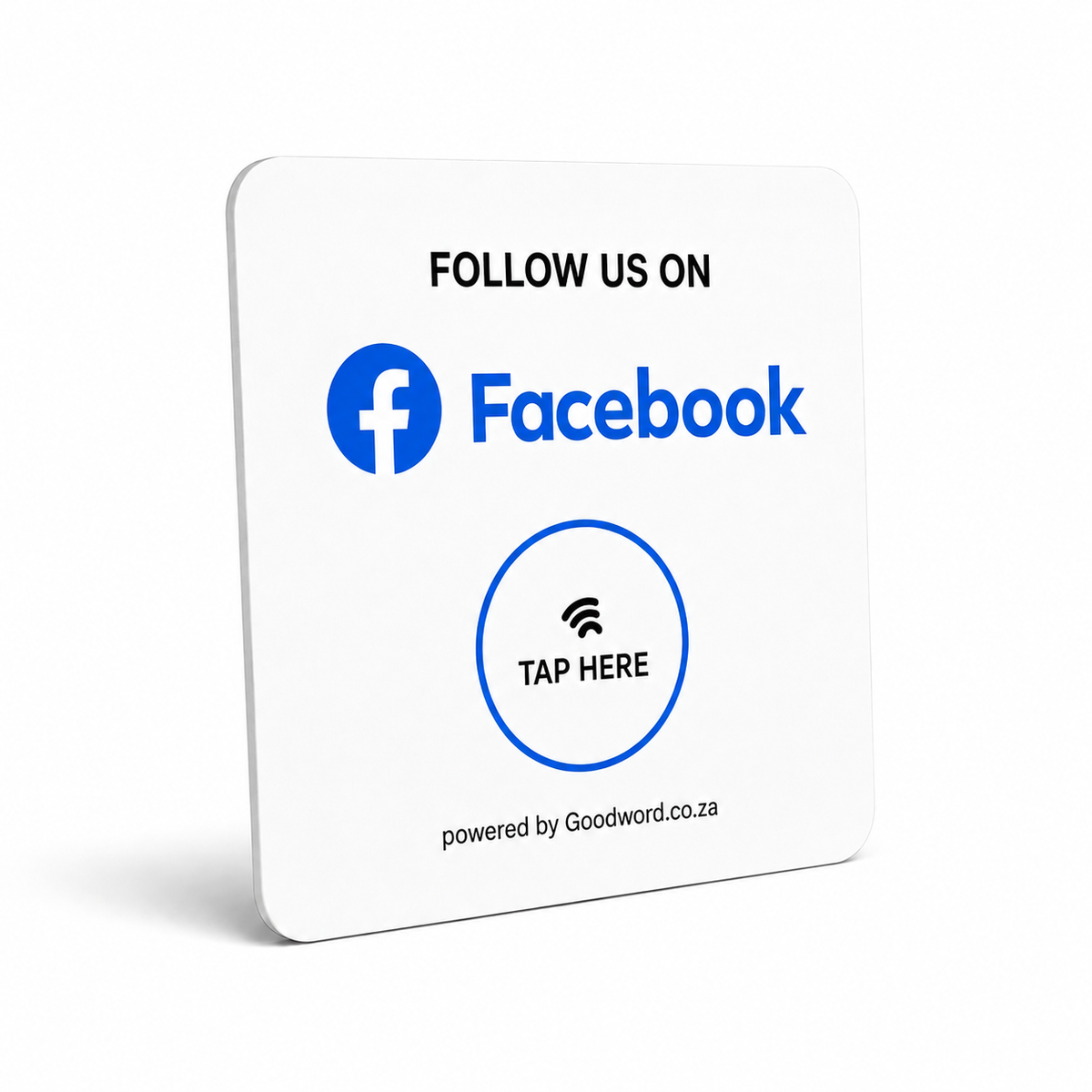
Your card arrives ready to use. We program the Facebook Page or profile link you provide before dispatch. When the card arrives, test it once, place it where customers naturally pause or pay, and you are ready to turn real-world visits into profile visits and follows.
Quick start
- Test it. Unlock your phone, tap the Tap Here area and confirm the correct Facebook Page or profile opens.
- Place it. Use the counter, reception desk, checkout, waiting area or another natural customer touchpoint.
- Tap + follow. Invite the customer to follow. They tap, open your Facebook Page or profile and choose Follow or Like when shown.
Opens your Facebook · Rewritable NFC · No battery — Card: acrylic · 117 x 128 mm · black or white · flat card, no stand included
How to tap the card
The phone reads the NFC link and opens your Facebook Page or profile. Depending on the phone, it may open in the Facebook app or in the browser.
- Wake the phone. Unlock or wake the screen.
- Tap the card. Hold the NFC area of the phone close to Tap Here.
- Open + follow. Tap the notification, confirm the Page or profile and tap Follow or Like when available.
On iPhone
iPhone XR / XS and later: hold the top of the phone near the card. iPhone 7 / 8 / X: open NFC Tag Reader first, then tap.
On Android
Make sure NFC is switched on. Hold the back of the phone near the card and tap the notification.
Placement that earns followers
Put the card where customers naturally have a moment to discover your Facebook Page.
- Counter. Beside the till or payment point.
- Reception. At check-in, check-out or handover.
- Waiting area. Give customers a moment to browse.
- Product display. Place near products or services worth following.
Make the page worth following. Before putting the card out, check that your profile photo, cover image, business details and recent posts are current. Give customers a clear reason to follow: updates, specials, new products, events, useful tips or behind-the-scenes content. Make sure your Page action button also points to the next step you want customers to take.
Link the card to Facebook
Use these steps if you want to link or re-link the card to a different Facebook Page or profile.
Before you start
- NFC-enabled smartphone
- NFC Tools app
- Your Facebook Page
Five steps
- Open your page. Open Facebook and switch to the exact business Page or professional profile you want customers to follow.
- Copy the page link. Use Share → Copy link when available. On desktop, copy the Page URL from the browser. If you use a username, the address can be facebook.com/yourusername.
- Add it in NFC tools. Open NFC Tools → Write → Add a record → URL / URI, paste the copied Facebook link and confirm.
- Write to the card. Tap Write, then hold your phone over the area marked Tap Here until writing completes.
- Test + follow. Close the app, tap the card normally and confirm the correct Facebook Page or profile opens and the Follow / Like option is available.
Troubleshooting
Nothing happens
Wake the screen, remove a very thick case and move the phone slowly over Tap Here. Android: check NFC is enabled.
Wrong page opens
Rewrite the card with the correct Facebook Page or profile URL. Test the link in your browser first.
Card will not rewrite
The tag may have been made read-only. A permanently locked tag cannot be unlocked.
Tap range feels weak
Avoid placing the card directly against metal surfaces, which can reduce NFC performance.
Before you lock the tag
Do not make the NFC tag read-only or permanently lock it until you have tested the link. A locked tag cannot be rewritten.
Good to know
- Reusable: as long as the tag is not locked, you can change the Facebook Page or profile link later.
- Privacy: the NFC tag stores the Facebook Page or profile URL you program; it does not store customer details.
Goodword is not affiliated with or endorsed by Facebook or Meta. Facebook and related marks belong to Meta or its affiliates.